
How to Track Expenses, Refunds and Transfers in Google Sheets
A purchase adds to spending. A refund reduces it. Moving money between your own accounts does neither. Keeping these transaction types separate helps you understand the month without counting the same money twice.
Here is a practical example using Sheetlark’s Expense Tracker. The amounts are examples, not a bank balance or a personal financial record.
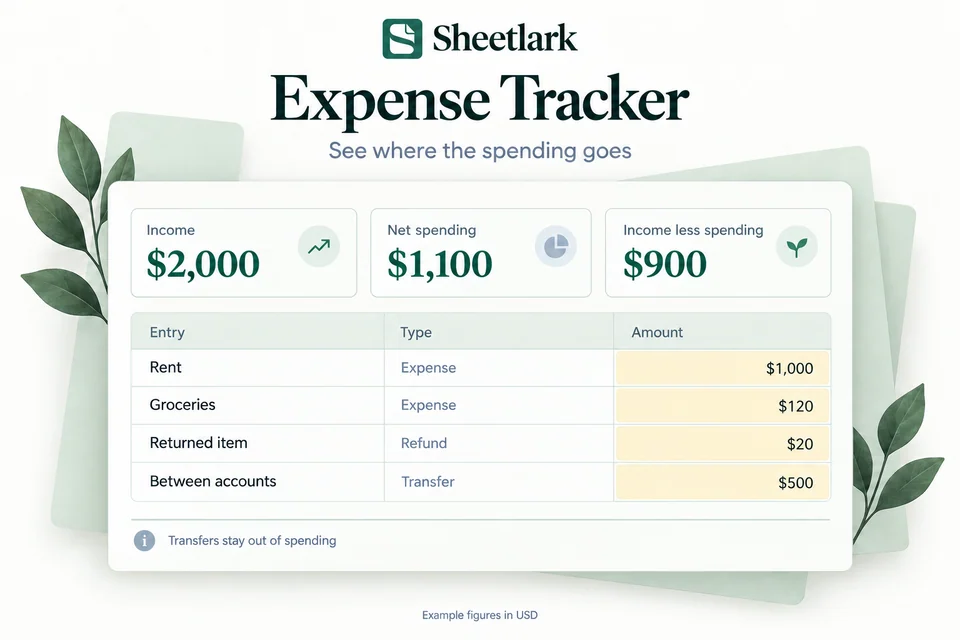
Record each entry once
In your own Google Sheets copy, start with Start Here and Example. Use Transactions to record the date, description, category, type and a positive amount. Use the yellow input cells and leave formulas intact.
| Entry | Type | Amount | Effect on net spending |
|---|---|---|---|
| Paycheck | Income | $2,000 | Excluded |
| Rent | Expense | $1,000 | +$1,000 |
| Groceries | Expense | $120 | +$120 |
| Returned item | Refund | $20 | −$20 |
| Between your own accounts | Transfer | $500 | Excluded |
For a refund, select Refund and enter a positive amount. Do not also make the amount negative: the transaction type already determines its effect on spending.
Check net spending, not just total money moved
The example’s net spending is $1,000 + $120 − $20 = $1,100. The $500 transfer stays out of that total. Income less net spending is $2,000 − $1,100 = $900.
That $900 is a difference between the example’s income and spending. It is not your bank balance: the calculation does not include an opening account balance or reconcile your accounts.
Try the transaction types yourself
Open the Expense Tracker example and change the grocery entry’s type while keeping its amount at $120:
- Expense: net spending is $1,100.
- Refund: net spending is $860, because this entry now reduces spending rather than adding to it.
- Transfer: net spending is $980, because this entry is excluded.
This changes the example grocery entry; it does not add a second transaction. Choose Reset example when you want to return to the original figures.
Review categories and your own records
Review Overview and Dashboard to understand category totals and the spending pattern. Compare your entries with your own transaction records, especially when a refund arrives in a later month.
The workbook uses preset categories and supports up to 500 transactions and 13 spending categories. Archive a copy when the transaction log is full. Adding rows does not expand the supported capacity.
Choose a tracker or a monthly budget
Expense Tracker focuses on recording and understanding actual transactions. If you also want to set category spending limits and compare actual spending with that plan, consider Monthly Budget.
Try the Expense Tracker example, or see what Expense Tracker includes.